I ditched Windows after a rather stupid update around late September or early October. Windows Explorer started stuttering, and booting up became a coin toss with a black screen. I opened my laptop to get work done, and my first job of the day was waiting for the laptop to let me work.
Right around then I came across KDE Plasma 6.6 made me quit Hyprland by Zei. He was running Fedora KDE on a 2015 MacBook Air. The title is about him quitting Hyprland; I was coming off Windows, so I had no Hyprland past to quit. Still, the desktop looked clean and unfussy, so I grabbed the Fedora KDE Plasma Desktop ISO and put it on my ThinkPad T14s Gen 2 Intel (currently on Fedora 44, KDE Plasma 6.7.5, running Wayland).
Pick the KDE spin right from the download page. Installing the default GNOME edition and bolting KDE on afterwards just leaves duplicate clutter all over the system.
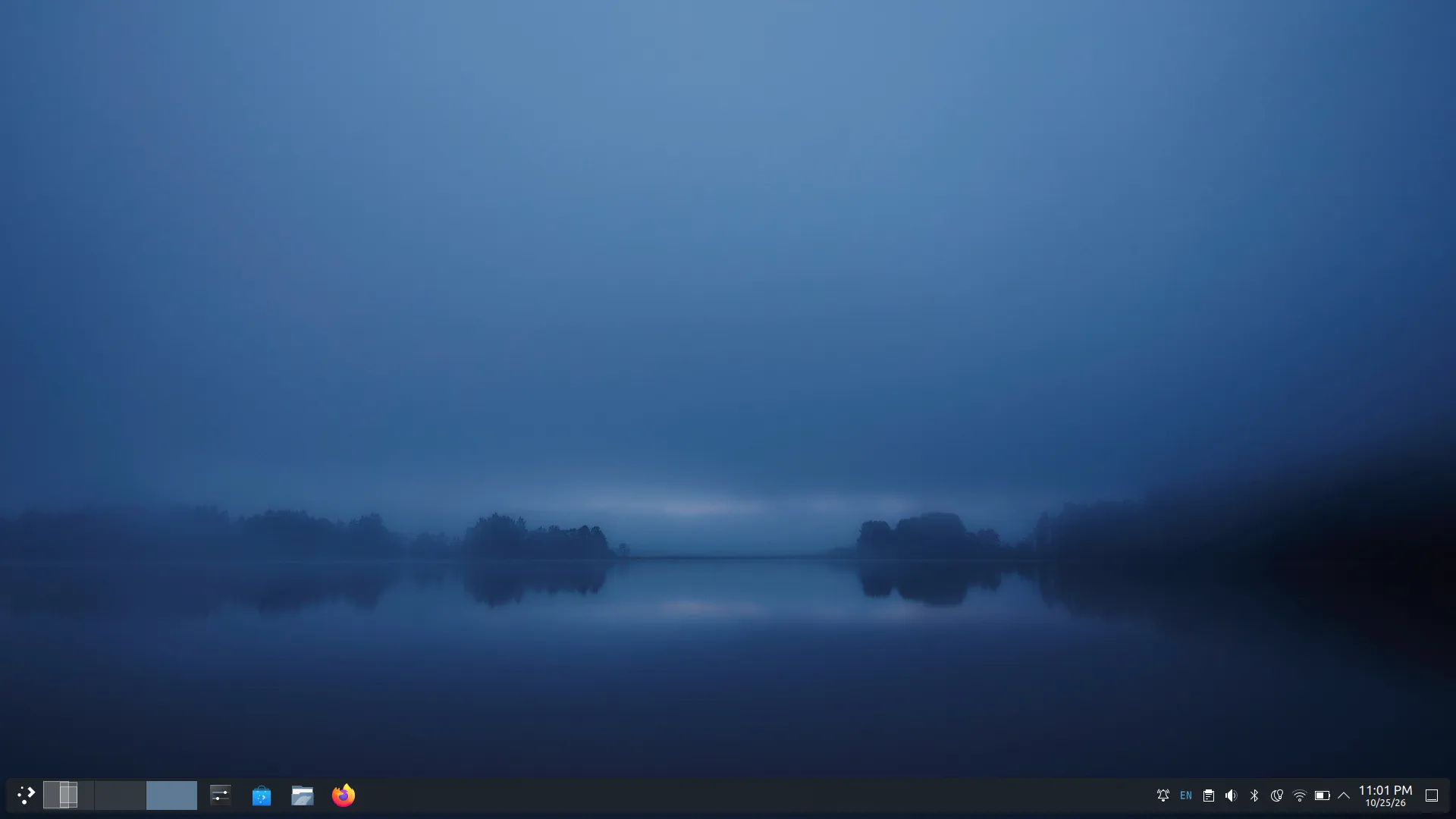
A screenshot only shows a wallpaper and a taskbar. Getting the OS installed just gives you a login screen. Whether you actually stay or wipe the drive two days later comes down to the small things you touch every five minutes: fonts, where windows go, the touchpad, Vietnamese input, screen unlock, and your coding tools.
If you stare at it all day, keep apps from fighting each other
Eight hours in front of a 14-inch screen with glaring white backgrounds wears my eyes out fast. I switched to a dark palette (Calm Charcoal) and kept Fedora's built-in DarkestHour wallpaper.
A bigger Linux annoyance is apps looking like they came from different planets. KDE apps use Qt, plenty of others use GTK; left at defaults, two windows side by side look like neighbours in an argument. Pulling GTK 3, GTK 4 and the Konsole terminal into the same dark theme keeps the screen calm no matter what you open.
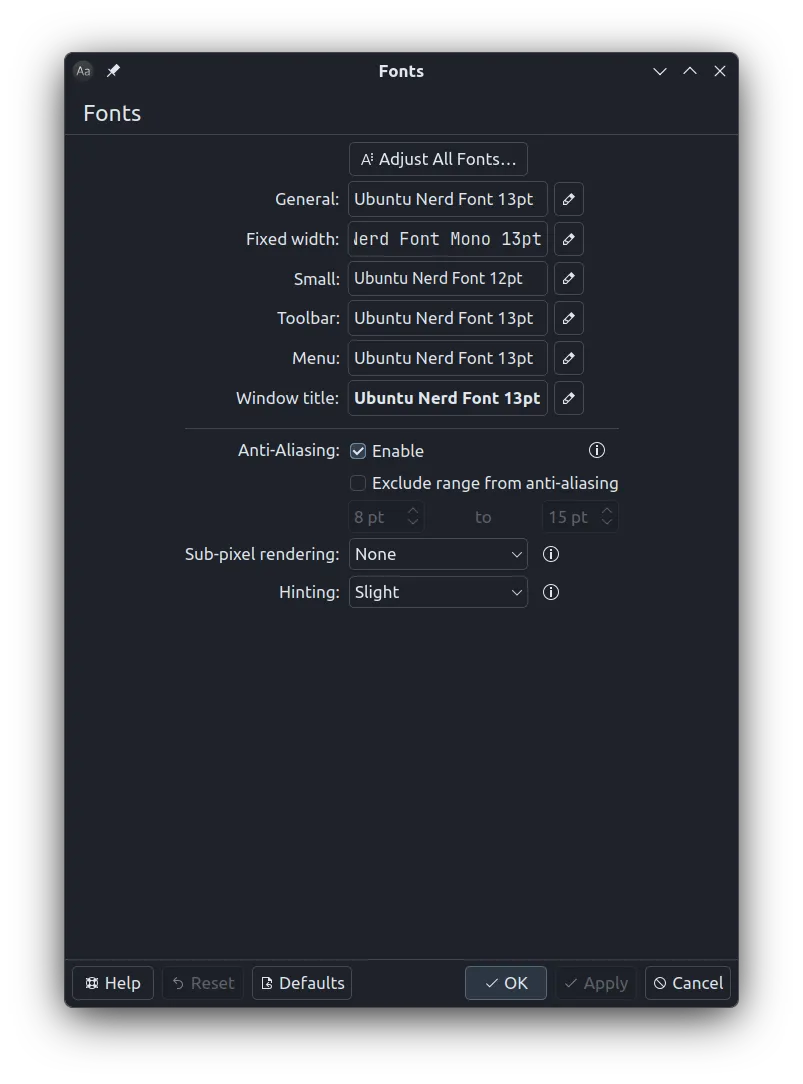
Same story with fonts. I use Ubuntu Nerd Font for the interface and JetBrainsMono Nerd Font Mono in the terminal. The Nerd Font part matters because terminal tools like Yazi and Neovim use extra glyphs to draw folder icons and Git branch markers; with a regular font, you just get a row of ugly little replacement boxes. And obviously, writing a font name in a config file only records the name—you still have to install the actual font files on the machine, because fonts do not sprout out of plain text.
A 14-inch screen and the touchpad
Working on a 14-inch laptop has a very familiar routine: you put your code on the left, carefully drag the terminal edge to line up on the right, and the second everything fits neatly, you need to check documentation in the browser. The browser covers both windows, you click back into the wrong pane, and suddenly you are five rounds deep into Alt+Tab just trying to find the terminal that was running your command. Jumping to a full auto-tiling window manager gives you the opposite headache: open a tiny settings dialog and it immediately shoves your editor aside to split the screen in half, shrinking your code to ant size.
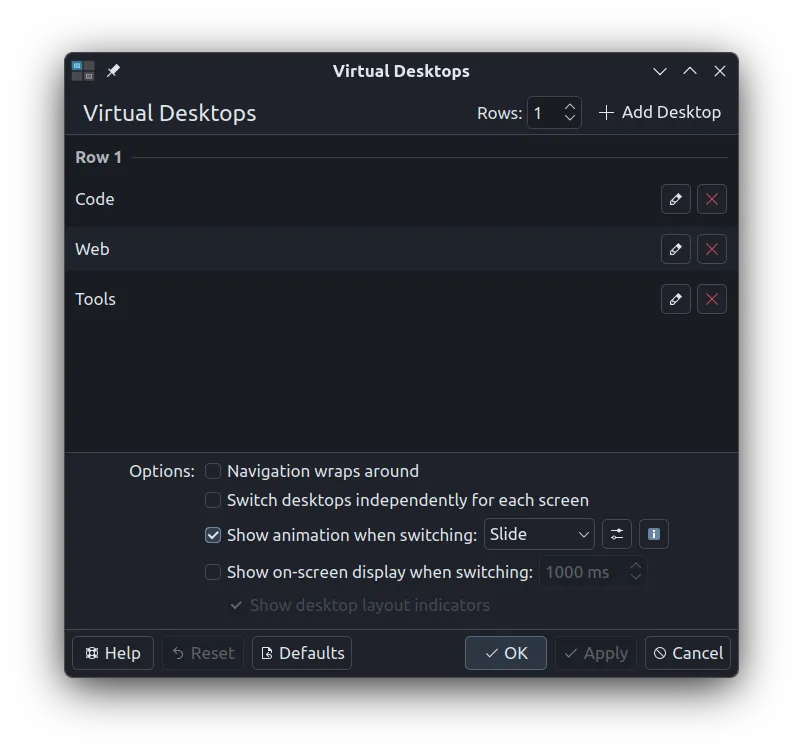
I took the middle route and set up three fixed virtual desktops:
| Workspace | What lives there |
|---|---|
| Code | Editor and coding terminals |
| Web | Browser, docs and research |
| Tools | Side utilities and settings windows |
Inside each workspace, KWin already has custom tile zones on Meta+T (Meta is the key with the Windows logo—different operating system, same logo still clocking in for work). I set up three columns at 25%–50%–25%. When I want windows lined up, I drop them into a zone or hit Meta with the arrow keys; when I just want a normal floating window, it stays put. Meta+W gives the overview, Meta+G shows the grid. No more nudging window borders by hand.
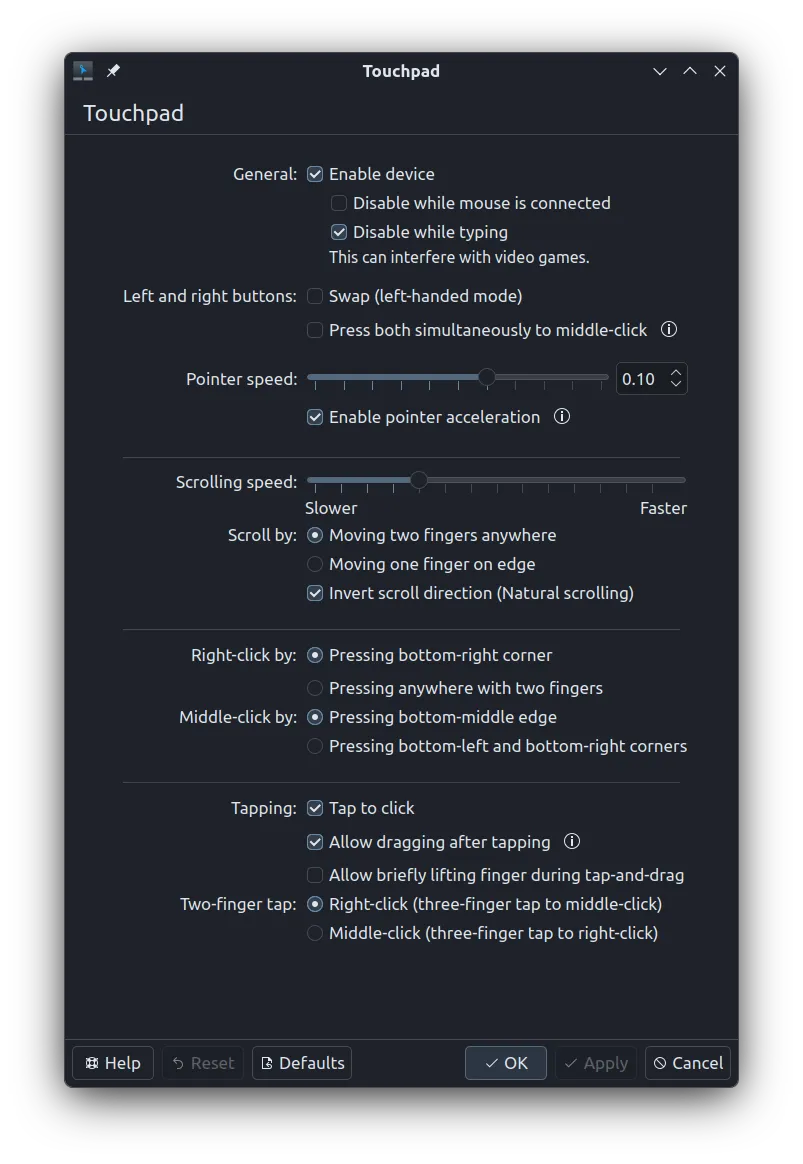
Then there is the touchpad. Nothing ruins a coding session on a laptop faster than typing away on line 80, grazing the touchpad with the base of your thumb, and realising three words later that the cursor quietly jumped to line 12 and mangled a function above. Add in two-finger scrolling going the wrong way out of the box and having to physically press the pad down for every click, and it gets old fast. The first fix was locking the touchpad while typing, flipping on natural two-finger scrolling and tap-to-click, and dropping pointer acceleration to 0.1. None of this ever shows up in desktop screenshots, but get one toggle wrong and it grates on you all day.
Battery, charge limits and a midnight eyecare command
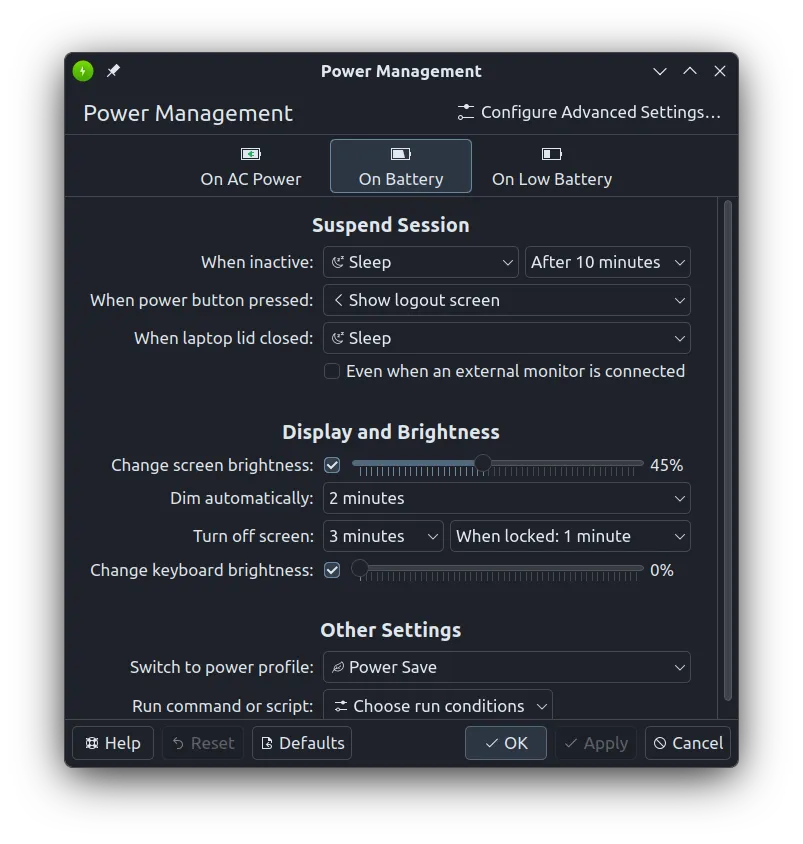
Take a laptop out on battery with the screen and keyboard backlight blazing and the percentage drops like a stone. My battery profile drops brightness to 45%, kills the keyboard backlight, turns the screen off after 3 idle minutes and sleeps after 10. When the laptop sits plugged in at my desk all day, hardware charge thresholds cap the battery between 75% and 80% so it does not cook itself at 100%.
Around 11 p.m., though, the limit of power profiles becomes obvious: they only know whether the charger is plugged in, not that the room lights are off. You are staring comfortably at a dark editor, switch tabs to a white documentation page, and get flashbanged in the face. Dimming it means opening System Settings to drag the brightness slider down, then hunting for Night Light to warm the screen up—only to wake up the next morning to a dim, yellow display and drag everything back by hand. Doing that manually gets old by night three.
So I wrote a small command called eyecare:
eyecare on
eyecare status
eyecare off
Running eyecare on calls KDE PowerDevil and KWin Night Light directly to drop brightness to 30% and warm the screen to 3200 K (or whatever you pass to --brightness 35 --temperature 4000).
The part that actually saves annoyance is off. Right before dimming the screen the first time, the script records your current brightness and colour temperature. When you run eyecare off, it puts your exact previous numbers back (say, 45% and 6500 K), so turning night mode off never blasts you with 100% cold white light in a dark room.
Getting Vietnamese input working on Wayland
A pretty desktop is useless if typing a single sentence in Vietnamese drops accents everywhere.
Few things are more irritating than replying to a teammate, typing duong and watching it stay duong, opening the settings window to see Telex sitting right there, and going back to the browser only to keep typing plain English. On Linux under Wayland, that happens because installing the packages, picking the engine and wiring the input method into KWin's Wayland session are three separate steps. Worse, if you copy old X11 guides and stuff GTK_IM_MODULE and QT_IM_MODULE into your environment variables, Wayland sessions often trip over their own feet.
I use IBus Typing Booster with the tb:vi:telex engine alongside English (US), toggling with Ctrl+Space:
sudo dnf install ibus ibus-typing-booster ibus-gtk3 ibus-gtk4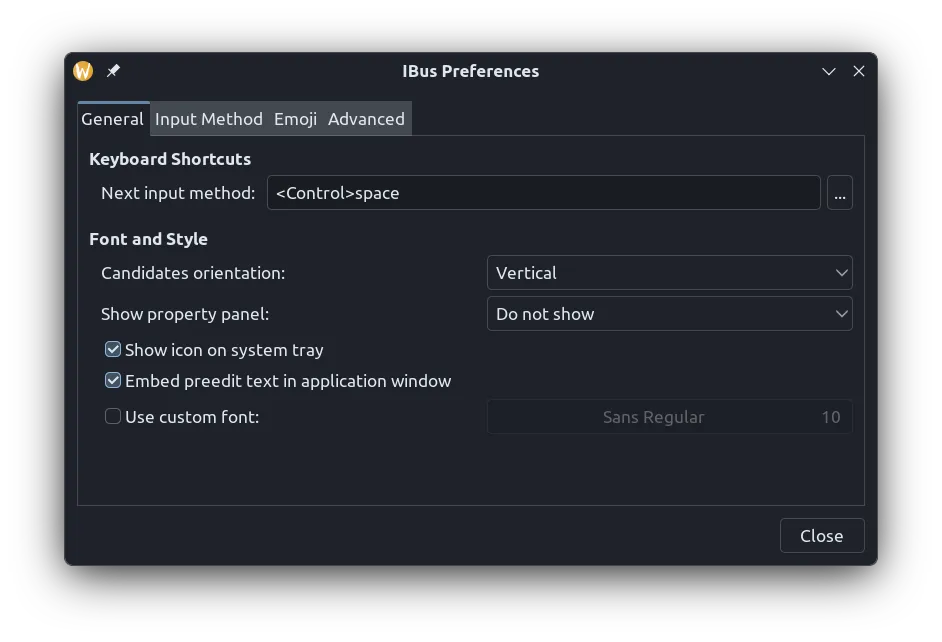
For the session wiring, KWin is set to use IBus Wayland directly, and the environment file keeps just one line: XMODIFIERS=@im=ibus. Sign out of Plasma and back in once, and Vietnamese typing just works.
Dropping the fingerprint reader, keeping face unlock with Howdy
Once you get used to opening the lid on Windows and landing straight on the desktop, typing a long password twenty times a day feels like a chore. This ThinkPad has both a fingerprint reader and an infrared (IR) camera.
I tried the fingerprint reader with fprintd and ditched it. Too finicky to bother keeping.
Instead, I use the IR camera with Howdy for face unlock. It works well day to day, though installing it on Fedora 44 took a detour: the prebuilt COPR packages hit dependency conflicts, so I had to pull the upstream source into /opt/howdy and build dlib 20.0.1 locally. If you set Howdy up this way, three things can bite you fast:
- The GUI and PAM using different Pythons: Howdy's config window and the PAM login module have to share the exact same Python interpreter. If you forget to patch the GUI to match the CLI, the test window recognises your face happily while the lock screen calls another Python, misses its libraries, and hangs.
- Trusting
/dev/video0: The laptop has both a regular webcam and an IR camera. Today IR isvideo0, tomorrow a reboot swaps it tovideo2and unlock dies. Point it at the fixed path inside/dev/v4l/by-path/instead. - Turning PAM on before testing in the terminal: Install it, enrol your face, run two clean recognition tests in the terminal, and only then enable PAM for
kdeandplasmalogin. Flipping PAM on first is the fastest way to lock yourself out of your own machine.
Even Howdy's own docs tell you straight up: face unlock is for convenience and can be fooled. I keep my password active as a fallback, and sudo in the terminal still asks for a typed password every time. Also, remember to slide the ThinkPad's physical camera shutter open. Staring at the lock screen with a piece of black plastic over the lens will not get you very far, no matter how carefully you tuned the thresholds.
The workbench: keeping Vim habits and wiring AI agents into Zed
In the terminal, I still live in Neovim (LazyVim) and Yazi with the same muscle memory: gd jumps to definitions, Space e opens the file tree. For my main graphical editor on Fedora, I switched to Zed—it starts fast, runs Vim mode on top of familiar VS Code shortcuts, and lets me bump code font sizes (15–16 pt) without touching the rest of the desktop.
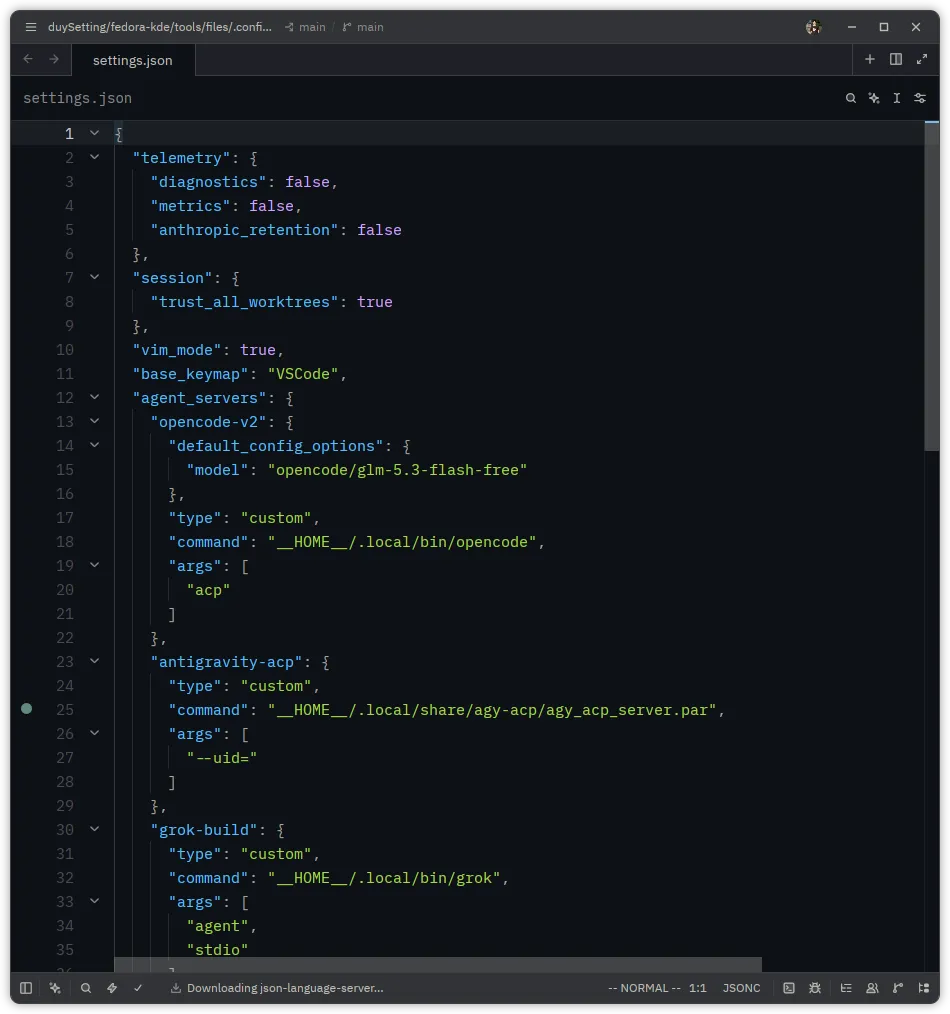
The other big reason for Zed is that I bounce between four AI coding agents: Codex, Grok Build, Antigravity and OpenCode v2. Juggling four separate windows is a mess, and installing four separate VS Code forks is worse.
Zed speaks ACP (Agent Client Protocol): the chat panel and code diffs live inside Zed, while each agent runs underneath as its own local process.
| Agent | Command wired into Zed |
|---|---|
| Codex | Node adapter codex-acp (2.2.2) pointing at the Codex binary |
| Grok Build | grok agent stdio |
| Antigravity | Separate runtime agy_acp_server.par --uid= |
| OpenCode v2 | opencode acp |
Antigravity has a small trap here: installing the regular agy CLI into your PATH and pointing Zed at it will fail, because that CLI does not speak ACP. You need the separate ACP runtime (version 1.4.3 alongside localharness_external) before the two will talk. And for Codex, keep the codex-acp adapter in a permanent folder on disk rather than Zed's temporary cache, unless you enjoy setting it up again after a cache cleanup.
Putting all four inside one sidebar keeps my screen clean. Logins, rate limits and token bills obviously still belong to each provider—I already did the maths on that in AI in QA works. Who pays the token bill?.
Settled in
It started with a botched Windows update, detoured through a YouTube video, and turned into an afternoon of filing down the rough edges until the machine fit my hands. Linux still makes you roll up your sleeves sometimes—building dlib for Howdy or figuring out why a CLI in PATH still refuses to speak ACP. The proof is right here in this post.
Once those pieces are sorted, though, opening the ThinkPad goes back to being simple: sit down and work. No waiting for Explorer to wake up, and no staring at a black boot screen wondering what mood the laptop is in today.
References
- Zei — KDE Plasma 6.6 made me quit Hyprland
- Fedora KDE Plasma Desktop — downloads and the KDE edition
- Nerd Fonts — font downloads
- IBus — Wayland and Plasma setup
- IBus Typing Booster
- Howdy — source, installation and security limitations
- Zed — External Agents and ACP
- Antigravity ACP — registry manifest