
Here is a quick look at applying Data-Driven Testing in Robot Framework. The main question is how to feed data in. RB has a DataDriver library for Excel (XLSX) and CSV. Old XLS is supported too, but it is 2024—let us forget it.
JSON is another, faster way to provide data, and I will cover that here as well.
The traditional way
The oldest and most direct method is to use the Test Cases section itself. This is Robot Framework's default:
*** Settings ***
Test Template    Login with invalid credentials should fail

*** Test Cases ***                USERNAME         PASSWORD
Invalid User Name                 invalid          ${VALID PASSWORD}
Invalid Password                  ${VALID USER}    invalid
Invalid User Name and Password    invalid          invalid
Empty User Name                   ${EMPTY}         ${VALID PASSWORD}
Empty Password                    ${VALID USER}    ${EMPTY}
Empty User Name and Password      ${EMPTY}         ${EMPTY}

*** Keywords ***
Login with invalid credentials should fail
    [Arguments]    ${username}    ${password}
    Log Many    ${username}    ${password}
The Test Cases rows add argument columns for the template. The test names stay distinct, but every body runs the same Login with invalid credentials should fail keyword. The logic is hidden behind Test Template in Settings.
To run the example, define these variables:
*** Variables ***
${VALID USER}    name
${VALID PASSWORD}    123
${EMPTY}
This approach is easy to understand, but falls apart with hundreds or thousands of records. It can help check data usage before introducing DataDriver or JSON, although --dryrun can check imports too, so I do not recommend building test cases this way.
DataDriver
DataDriver improves on the traditional method by reading test data from XLSX and CSV files. Install the external library:
pip install robotframework-datadriverThe Robot file still uses Test Template, but the data lives in a separate file:
*** Settings ***
Library           DataDriver    <path_to_csv_file>
Test Template     Login With User And Password

*** Test Cases ***
Login With User And Password    ${username}    ${password}

*** Keywords ***
Login With User And Password
    [Arguments]    ${username}    ${password}
    Log Many    ${username}    ${password}
If the test name in the report does not matter, use the keyword name as the test name.
CSV file
You can compose a CSV in Excel and use Save as CSV. It is faster and less error-prone than typing CSV by hand.
The columns are:
***Test Cases***in the first column.${username}in the second; keep the${}or DataDriver will not recognise it as a variable.${password}in the third.
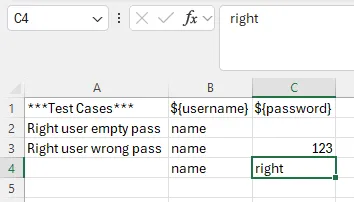
Writing a CSV in Excel, named test.csv
Each row follows the columns from left to right. The first value is the test name (it may be empty, in which case the keyword's original name is used); the next two values are the username and password. DataDriver treats these arguments as strings, including numeric-looking values.
There is a small trap. This looks reasonable:
*** Settings ***
Library           DataDriver    ./test.csv
Test Template     Login With User And Password

*** Test Cases ***
Login With User And Password    ${username}    ${password}

*** Keywords ***
Login With User And Password
    [Arguments]    ${username}    ${password}
    Log Many    ${username}    ${password}
but it fails when the CSV uses commas. DataDriver's default delimiter is a semicolon. Pass the file name, dialect=UserDefined and delimiter=, explicitly:
DataDriver's constructor also exposes these parameters; that is why the seemingly correct import can fail when the CSV was saved from Excel with commas:

DataDriver parameters
Opening the CSV in a text editor makes the problem visible:
***Test Cases***,${username},${password}
Right user empty pass,name,
Right user wrong pass,name,123
,name,right
*** Settings ***
Library DataDriver file=./test.csv dialect=UserDefined delimiter=,
Test Template Login With User And Password
*** Test Cases ***
Login With User And Password ${username} ${password}
*** Keywords ***
Login With User And Password
[Arguments] ${username} ${password}
Log Many ${username} ${password}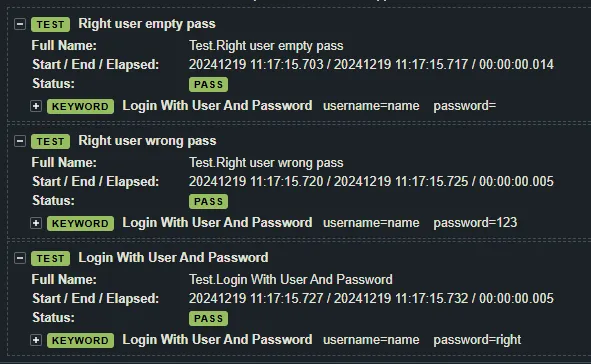
Log
If a row has no test name, DataDriver uses the name in Test Cases. If you want the default library call, either write semicolon-separated CSV by hand or replace every comma with a semicolon in your editor.
The default form is:
*** Settings ***
Library           DataDriver    ./test.csv
VS Code text replacement
XLSX file
The XLSX version is simpler because the spreadsheet handles the format:
*** Settings ***
Library           DataDriver    file=./test.xlsx
Test Template     Login With User And Password

*** Test Cases ***
Login With User And Password    ${username}    ${password}

*** Keywords ***
Login With User And Password
    [Arguments]    ${username}    ${password}
    Log Many    ${username}    ${password}
Use sheet_name to choose a sheet; otherwise DataDriver uses the first sheet:
*** Settings ***
Library           DataDriver    file=./test.xlsx    sheet_name=Sheet1
The test runs, but startup becomes slower as more data is loaded. I do not recommend XLSX when CSV will do; save the sheet as CSV first.
JSON
JSON does not need DataDriver. Python reads JSON faster than CSV or XLSX. We need a JSON library and a small setup keyword:
pip install robotframework-jsonlibrary*** Settings ***
Library JSONLibrary
Library robot.utils
Suite Setup Load Variable Data
Test Template Login With User And Password
*** Keywords ***
Load Variable Data
${ABS_PATH} = Abspath test_data/test_data.json
${DATA} Load Json From File ${ABS_PATH}
Set Suite Variable ${USERNAME} ${DATA}[username]
Set Suite Variable ${PASSWORD} ${DATA}[password]
Login With User And Password
[Arguments] ${username} ${password}
Log Many ${username} ${password}
*** Test Cases ***
Login With User And Password ${username} ${password}test_data/test_data.json is relative to the current working directory. A one-record file is:
For example, if the terminal is currently at:
PS C:\\Users\\Duy Van\\Downloads\\Duy247.github.io>{
"username": "name",
"password": "123"
}JSONLibrary reads the file; robot.utils supplies the absolute path required by Load Json From File. Suite Setup loads the JSON and places username and password in suite variables. See the JSONLibrary documentation.
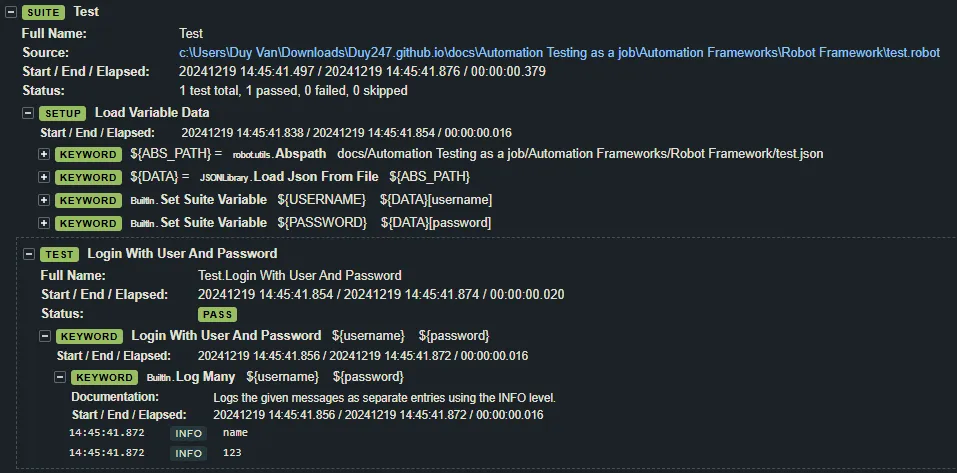
Log using JSON
There is a quicker way. Robot Framework supports --variablefile, so the suite can be reduced to:
*** Settings ***
Test Template     Login With User And Password

*** Keywords ***
Login With User And Password
    [Arguments]    ${username}    ${password}
    Log Many    ${username}    ${password}

*** Test Cases ***
Login With User And Password    ${username}    ${password}
robot --variablefile test_data/test_data.json test.robotDone. The command-line run looks like this:
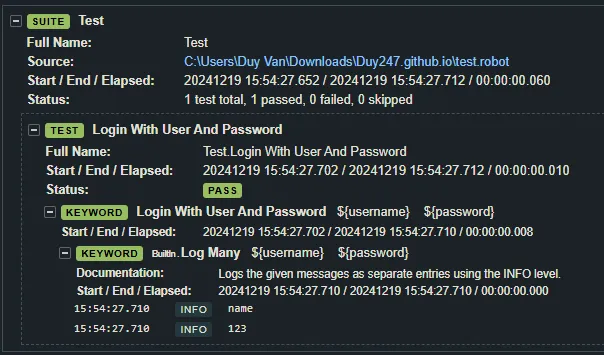
Log using JSON from the command line
I do not recommend this for a large JSON file, and looping over JSON inside one keyword still produces one test rather than separate test cases.
To create one test per JSON file, keep many JSON files in a directory and use DataDriver's glob reader:
*** Settings ***
Library           DataDriver    file=${CURDIR}/DataFiles/*_test.json    reader_class=glob_reader
Library           OperatingSystem
Test Template     Test All Files

*** Test Cases ***
Glob_Reader_Test    1_test

*** Keywords ***
Test All Files
    [Arguments]    ${file_name}
    ${file_content}=    Get File    ${file_name}
    ${username}=    Evaluate    json.loads($file_content)["username"]
    ${password}=    Evaluate    json.loads($file_content)["password"]
    Log Many    ${username}    ${password}
This reads every *_test.json under DataFiles, passes each file name to the template keyword, extracts its username and password, and reports each file as a separate test case.
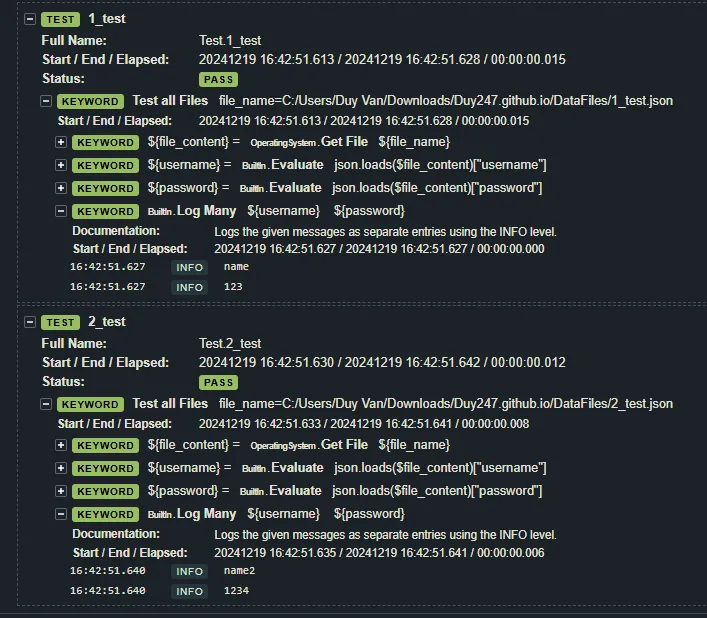
Log using separate JSON files
Conclusion
You now have the main ways to apply data-driven testing in Robot Framework: CSV, XLSX and JSON. The JSON options still need a little more work to feel complete, so I will leave that thread open here.