
This is a quick tour of settings in Robot Framework. The two main parts are Test Suite settings and Test Case + Keyword settings.
Test Suite settings
Suite settings go in the Settings section at the top of a Robot file. The items covered here are Name, Documentation, Metadata, Tags, the Test Template setting and Test Timeout. Library, Resource, Variables, Suite Setup and Suite Teardown are also suite settings, but I will skip them here.
Name
Name lets you name a test suite. It is slightly redundant because the default name comes from the file name, but it is useful when the log needs a prettier name.
*** Settings ***
Name    My Test Suite
A suite file named in snake_case is displayed in Title Case. To order suites, prefix filenames with 01__, 02__, 03__; the numeric prefix is not included in the suite name. You cannot use Name to control execution order: suites still run top to bottom, while the numeric prefixes sort the files. The reason Name remains useful is that the chosen name appears in the test log.
Documentation
Documentation describes a test suite:
*** Settings ***
Documentation    This is a test suite for testing the login page
It supports special syntax and is not limited to one line or paragraph.
*** Settings ***
Documentation    This is a test suite for testing the login page \nAnd this is the second line of the documentation
...              And this is the third line of the documentation
Text can be bold, italic, bold italic or code:
| Unformatted | Formatted |
|---|---|
| *bold* | bold |
| _italic_ | italic |
| _*bold italic*_ | bold italic |
| ``code`` | code |
| *bold*, then _italic_ and finally ``some code`` | bold, then italic and finally some code |
| This is *bold\n\n on multiple\n\n lines*. | This is bold\n\non multiple\n\nlines. |
URLs become links in the log.
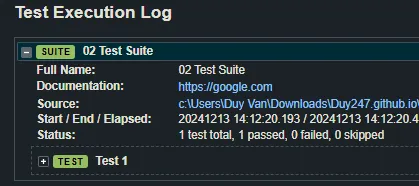
URL in Documentation
For image and table formatting, see the Robot Framework User Guide.
Metadata
Metadata is another way to attach information, this time as key:value-style data:
*** Settings ***
Metadata    Author    Duy Van
...         Version    1.0
...         Date    12/12/2024
That is basically all it does.
Tags
Tags are a powerful way to label the test cases in a suite:
*** Settings ***
Test Tags    smoke    login
This gives the suite's test cases the smoke and login tags. Despite the name, Test Tags tags the test cases in the suite, not the suite itself. Tags are useful when selecting a subset of tests to run; I cover that in Test Execution.
Test Template
Test Template turns a test into a data-driven test. The test case is run repeatedly with each data set. I cover the details in Data-Driven Testing.
Test Timeout
Test Timeout sets the maximum time a test case may run. If it exceeds the limit, the case fails.
There are two reasons to use it: a test may need time for something to finish loading, but the timeout can also enforce a response-time expectation. If a feature or page takes too long, the test fails.
*** Settings ***
Test Timeout    30s
You can use minutes too, such as 3 minutes; see the time format documentation. A completed test moves on immediately; it does not wait for the full timeout.
Test Case settings
Some test-case settings are inherited from Settings, while others are declared on the test case. Tags, Timeout, Test Setup and Test Teardown can be overridden in a test case. Documentation is declared only in the test case.
Tags
Test-case tags supplement the suite tags:
*** Settings ***
Test Tags    smoke    login

*** Test Cases ***
Test
  [Tags]  main page
  Log   Test
Test has smoke, login and main page. Prefixing a tag with - removes it:
*** Settings ***
Test Tags    smoke    login

*** Test Cases ***
Test
  [Tags]  -login
  Log   Test
Keep tags simple: unaccented letters, numbers, hyphens or underscores.
Timeout
Test-case Timeout overrides the suite timeout:
*** Settings ***
Test Timeout    30s

*** Test Cases ***
Test
  [Timeout]  1m
  Log   Test
Test now has a one-minute timeout, not 30 seconds.
Setup and Teardown
As explained in Setup and Teardown, [Setup] and [Teardown] on a test case override the Test Setup and Test Teardown declared in suite settings:
*** Settings ***
Test Setup    [Keyword 1]
Test Teardown    [Keyword 2]

*** Test Cases ***
Test
  [Setup]  [Keyword 3]
  Log   Test
  [Teardown]  [Keyword 4]
Normally put [Setup] at the beginning and [Teardown] at the end of a test case.
Documentation
Test-case Documentation is separate. A [Documentation] entry belongs to that test case; suite documentation does not become test-case documentation.
*** Test Cases ***
Test
  [Documentation]  This is a test case for testing the login page
  Log   Test
Keyword settings
Keyword settings work much like test-case settings:
[Documentation]: describe the keyword.[Tags]: tags for the keyword.[Setup],[Teardown]: setup and teardown for the keyword.[Timeout]: keyword timeout.
[Arguments] and [Return] turn a keyword into something close to a Python function; they are covered in Keywords.