This is the guide to finishing the Android branch: getting the page source of the currently open screen without creating an additional session in Appium Inspector. If the session is not stable, handle it according to the diagnostic ladder from the previous article first; this guide cannot revive a UiAutomator2 server that has died.
A very familiar situation. You are running tests with Robot Framework, the app has gone through a long flow and is stuck on the exact screen where you need to get the locator. Open the Inspector, create another session, the app gets relaunched or the target reports a session conflict. And just like that, the state you had navigated through twelve steps to reach is gone.
Meanwhile, the Robot Framework session is still alive and Appium already has an endpoint that returns XML. So just call that endpoint directly.
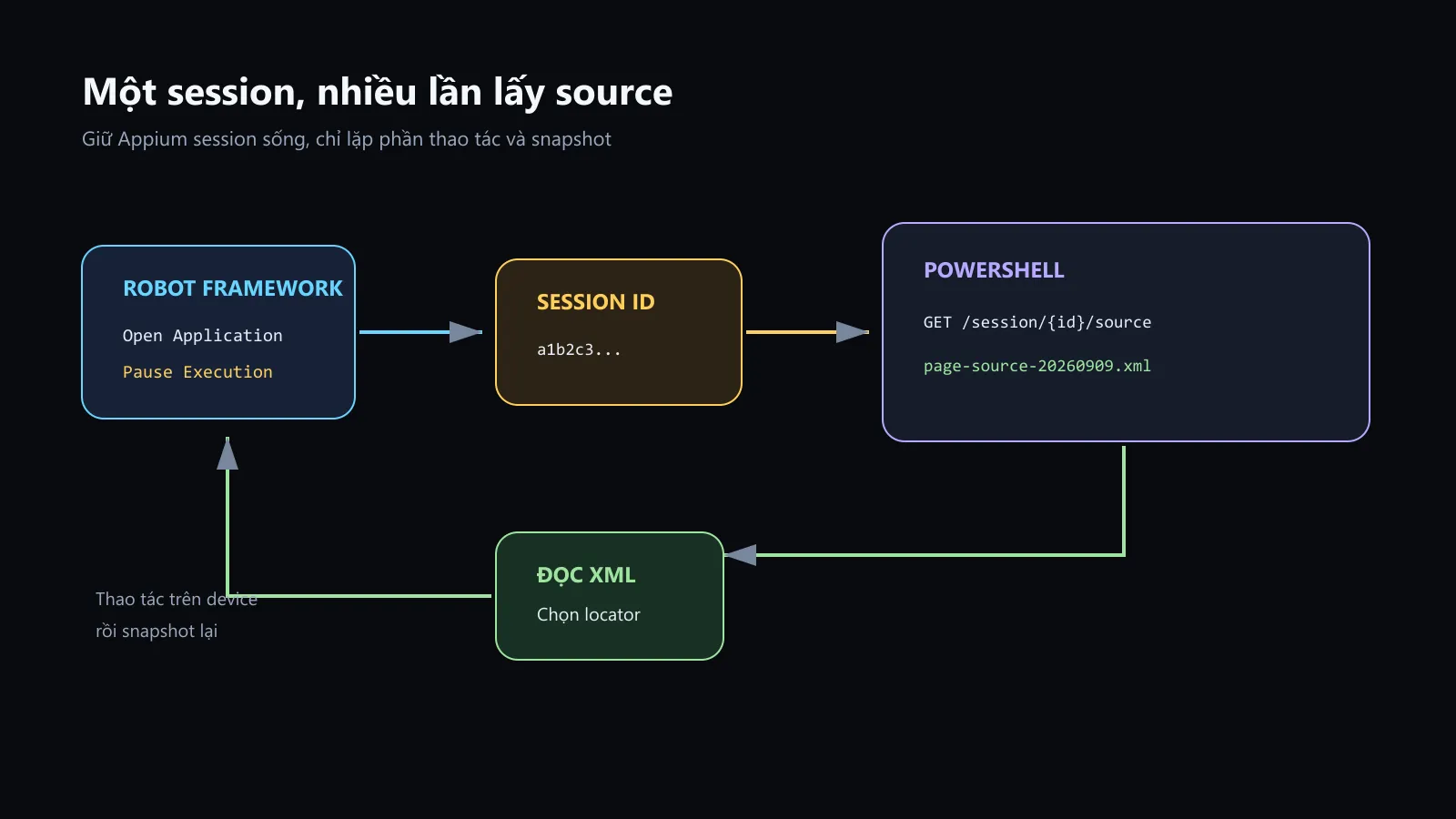
The diagram I built from the flow in the article. The Session ID goes straight from Robot to PowerShell; there’s no need to enable session discovery and no need to create an additional session to inspect the UI.
Clarify first: what is actually faster?
When Appium Inspector refreshes the source, it also needs to request the driver to generate the page source. Calling GET /session/{sessionId}/source directly does not make UiAutomator2 naturally generate XML ten times faster.
The faster part is the workflow:
- do not open another GUI;
- do not create a new session;
- do not launch/reset the app again;
- do not compete for the target with the running Robot session;
- a PowerShell command immediately creates an XML file to search and diff.
Saying 'take a quick snapshot' is correct. Saying that a secret endpoint makes UiAutomator2 run faster than its nature is nonsense.
The endpoint we will use
Appium supports WebDriver endpoint:
GET /session/:sessionId/sourceThe response has the form:
{
  "value": "<?xml version=\"1.0\" encoding=\"UTF-8\"?><hierarchy>...</hierarchy>"
}
value is the XML that needs to be saved. If you write the JSON directly to the .xml file, the editor will open a bunch of escape quotes that look like instant noodles that haven't been soaked.
Keep a debug session alive
Create tests/dom_debug.robot:
*** Settings ***
Library       AppiumLibrary    timeout=10s
Library       Dialogs
Variables     variables/android.py
Suite Setup   Open Debug Session
Suite Teardown    Close All Applications

*** Test Cases ***
Keep Session Alive To Get Page Source
    ${session_id}=    Get Appium SessionId
    Log To Console    \nAPPIUM_SESSION_ID=${session_id}
    Pause Execution
    ...    The session is being kept alive. Get the source with PowerShell, then click OK to close it.

*** Keywords ***
Open Debug Session
    Open Application
    ...    ${APPIUM_URL}
    ...    appium:options=${CAPABILITIES}
Get Appium SessionId gets the ID of the current driver, not the index that Open Application returns. Pause Execution keeps the Robot process and session paused while you interact with the device or make HTTP calls from another terminal.
Suite Teardown still closes the session when the test ends. Don't skip the teardown and leave the session orphaned until Appium times out; debugging with purpose is different from forgetting to clean up.
Run:
robot --pythonpath . --outputdir results tests\dom_debug.robotThe terminal will print:
APPIUM_SESSION_ID=3b9d...exampleKeep the Pause dialog open while taking a snapshot.
PowerShell script to get XML
Create tools/Get-AppiumDom.ps1:
param(
    [Parameter(Mandatory)]
    [string] $SessionId,

    [string] $BaseUrl = 'http://127.0.0.1:4723',

    [string] $OutputPath = '.\dom-snapshots'
)

$ErrorActionPreference = 'Stop'

if (-not (Test-Path -LiteralPath $OutputPath)) {
    New-Item -ItemType Directory -Path $OutputPath | Out-Null
}

$base = $BaseUrl.TrimEnd('/')
$endpoint = "$base/session/$SessionId/source"
$timestamp = Get-Date -Format 'yyyyMMdd-HHmmss-fff'
$snapshotPath = Join-Path $OutputPath "page-source-$timestamp.xml"

try {
    $response = Invoke-RestMethod `
        -Method Get `
        -Uri $endpoint `
        -TimeoutSec 60

    if ($null -eq $response.value -or $response.value -isnot [string]) {
        throw 'Appium response does not contain a string value'
    }

    $response.value | Set-Content `
        -LiteralPath $snapshotPath `
        -Encoding utf8

    $resolved = (Resolve-Path -LiteralPath $snapshotPath).Path
    Write-Host "DOM snapshot saved: $resolved"
}
catch {
    $message = $_.Exception.Message

    if ($message -match 'invalid session|404') {
        throw "Session '$SessionId' is no longer active. Get a new ID from Robot Framework."
    }

    throw "Cannot get Appium page source from '$endpoint': $message"
}
Script takes three parameters instead of hard-coding:
SessionIdis mandatory because it identifies the active session;BaseUrlby default points to the local Appium;OutputPathis the folder containing snapshots, to avoid throwing XML all over the project root; the timestamped file name is generated by the script inside this folder.
Timestamp has milliseconds to press consecutively without overwriting the previous file. -LiteralPath avoids PowerShell interpreting square brackets or wildcards in the path. TimeoutSec prevents the terminal from waiting indefinitely if UiAutomator2 is stuck.
Run in another terminal:
.\tools\Get-AppiumDom.ps1 `
    -SessionId 'SESSION_ID_TU_ROBOT'
Each time it runs, it will create a new file:
dom-snapshots\page-source-20260908-153045-127.xmlAppium 3 and the /wd/hub story
Appium 3 defaults to using the base path /, so the correct URL is:
http://127.0.0.1:4723/session/{sessionId}/sourceOnly when the server is opened as follows:
appium --base-path /wd/hubthen only transmit:
.\tools\Get-AppiumDom.ps1 `
    -SessionId 'SESSION_ID_TU_ROBOT' `
    -BaseUrl 'http://127.0.0.1:4723/wd/hub'
Seeing an old tutorial with /wd/hub and then copying it into Appium 3 by default will get a 404. The server doesn't hate you; you are typing at the wrong door of the old house.
Get source right in Robot Framework
If you don't need to operate from an external terminal, AppiumLibrary already has Get Source:
*** Settings ***
Library    AppiumLibrary
Library    OperatingSystem
Library    DateTime

*** Keywords ***
Lưu Page Source Hiện Tại
    ${source}=       Get Source
    ${timestamp}=    Get Current Date    result_format=%Y%m%d-%H%M%S
    ${path}=         Join Path
    ...    ${OUTPUT DIR}
    ...    page-source-${timestamp}.xml
    Create File    ${path}    ${source}    encoding=UTF-8
    Log    Page source saved to ${path}
    RETURN    ${path}
${OUTPUT DIR} is the actual output directory of the Robot run, for example results. This method is convenient when you want to attach a snapshot to a debug or test teardown keyword.
PowerShell has its own advantage: the session is paused but you can still take many snapshots without modifying or rerunning the test.
Rapid iteration workflow
A practical work round:
- Robot opens a session and pauses.
- You operate on the emulator/device until the correct state.
- Run the script to take a snapshot.
- Open the XML, find the text/resource-id/content-desc needed.
- Operate to the next state and run the script again.
- Compare the two XMLs if you need to know which node appears or disappears.
PowerShell can compare quickly:
Compare-Object `
    (Get-Content .\dom-snapshots\page-source-before.xml) `
    (Get-Content .\dom-snapshots\page-source-after.xml)
With XML minified into a single line, format it using an editor first or use an XML-aware diff; Compare-Object line by line at that point only shows 'the whole line changed', which is correct but not very useful.
Why not probe the session from the server by yourself?
Appium has an endpoint that lists sessions, but session discovery is an insecure feature and must be enabled separately. This article does not need it because AppiumLibrary has already returned the ID using Get Appium SessionId.
You shouldn't open a server like this just to avoid copying an ID:
--allow-insecure=session_discoveryGranting additional server access to a very small utility is exchanging security for laziness. Taking the ID from the client that owns the session is both clear and does not require guessing when there are multiple sessions.
Only bind Appium on loopback
Examples use 127.0.0.1, meaning Appium only serves clients on the same machine. The Session ID is the key to sending commands to the device control session. Do not bind Appium to 0.0.0.0 or expose port 4723 to the network if there is no proper access control layer.
In particular, the XML file can contain the text the user is entering, accessibility labels, and data displayed in the app. Do not commit the app's dom-snapshots if it contains sensitive data.
Add to .gitignore of the test project:
dom-snapshots/
results/
When source is stale or takes too long
If the screenshot has changed but the XML is still the same as the previous state:
- confirm the session ID matches the target;
- wait for a specific UI state instead of taking a snapshot in the middle of animation;
- check whether the current context is native or WebView;
- read the Appium debug log to see if the request source has completed or timed out;
- check whether the accessibility of the element really exposes a new node.
If each time getting the source takes about 10 seconds, the application can keep the accessibility event stream always busy. Review waitForIdleTimeout like the troubleshooting article, but don’t turn off idle wait before measuring. Calling the endpoint directly can bypass the Inspector part; it doesn’t fix a UI hierarchy that is inherently hard to build.
If it reports an invalid session, get a new ID. W3C WebDriver does not have a standard mechanism for a client to rebuild a session that has been deleted from the ashes.