After setting up Page Object and Component Object, the tests look cleaner, but the Android infrastructure can still act up. Mobile automation has a very nasty type of error: Robot Framework reports Element not found, but the cause could be that the phone just lost ADB, the app hasn't opened the correct activity, a permission dialog is blocking the screen, or the locator is actually wrong. The same message on the surface could have eight layers of causes underneath.
Therefore, this article is not arranged according to '50 Appium error-fixing commands.' I will go from the lower level to the higher level. If the lower level is not alive, fixing the upper level is just waving a fan in front of the air conditioner.
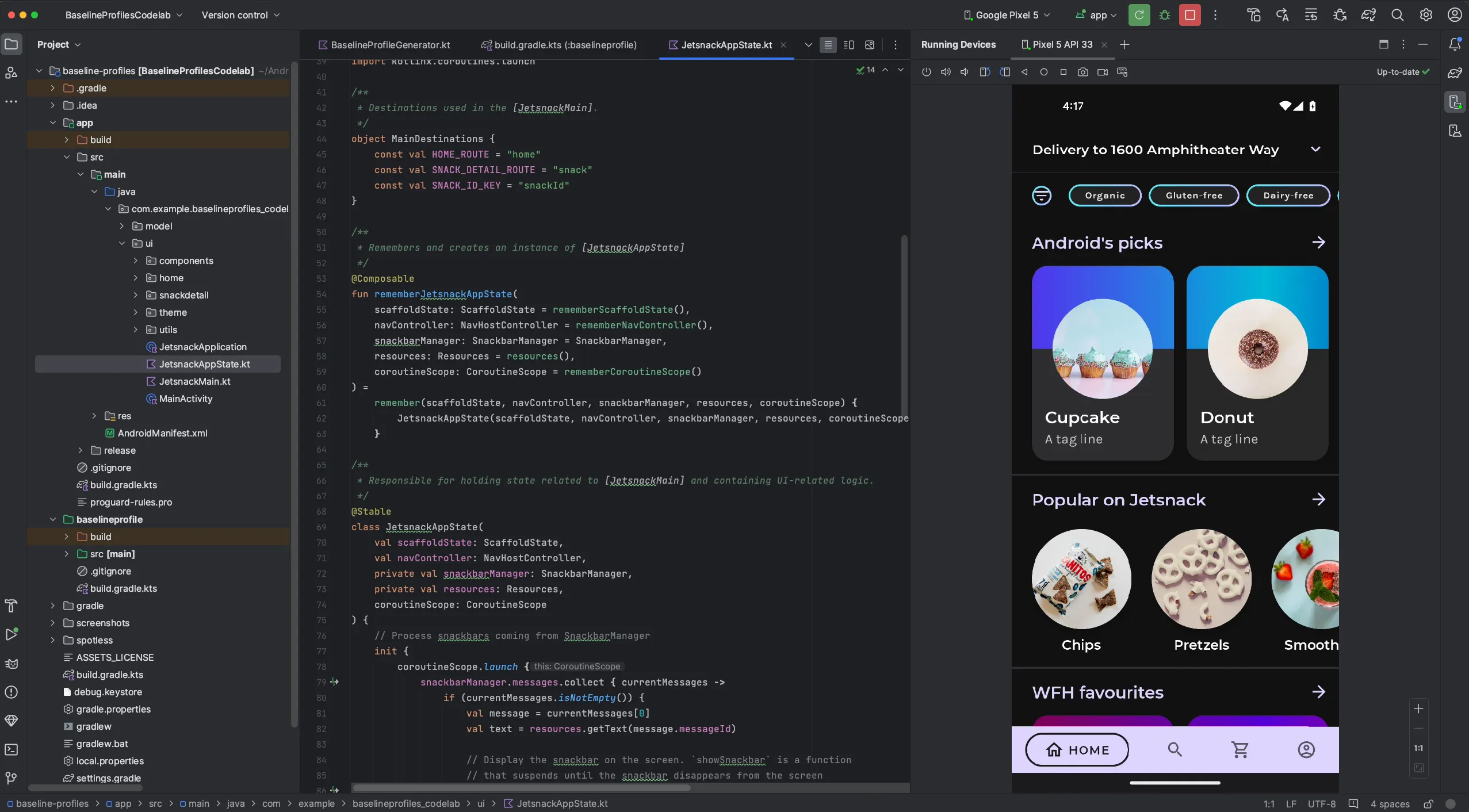
Running Devices seeing the new phone only proves that Android Studio is communicating with the target; it does not prove that the Appium session or locator is healthy. Photo: Android Developers, used under Content License.
Diagnostic ladder
Don't skip levels. If adb devices -l is still empty, there's no reason to open Appium Inspector, replace XPath, or increase the timeout to 120 seconds.
Level 1: Is the machine running the correct executable?
Common symptoms:
- this terminal runs
adb, another terminal reports not found; - Android Studio sees the emulator but Appium does not;
- error appeared right after updating the SDK;
appium driver doctor uiautomator2reports missing environment variable.
Check:
where.exe python
where.exe node
where.exe java
where.exe adb
where.exe appium

python --version
node --version
java -version
adb version
appium --version
If where.exe adb returns two or three paths, you need to pay attention. Android Studio may use ADB in SDK A, while the terminal calls the old ADB in SDK B. Two ADB server/clients of different versions can conflict with each other or see different targets.
Check the variable:
$env:JAVA_HOME
$env:ANDROID_HOME
$env:ANDROID_SDK_ROOT
Test-Path "$env:JAVA_HOME\bin\java.exe"
Test-Path "$env:ANDROID_HOME\platform-tools\adb.exe"
The way to fix it is to clean up the PATH so that one Android SDK is prioritized, open a new terminal, and run the doctor again:
appium driver doctor uiautomator2Level 2: read the ADB status correctly
adb devices -l| Status | What does it really say? | Next steps |
|---|---|---|
| No target line | ADB has not detected the device/emulator | Check the cable, driver, AVD and correct adb.exe |
unauthorized | The computer has not been granted debug permission by the device | Unlock the screen, accept RSA or revoke, then reconnect |
offline | The target has a record but does not respond to ADB | Restart the target/connection, check the cable and SDK |
device | ADB connected | Still need to check if Android has finished booting on the emulator |
You can restart the ADB server:
adb kill-server
adb start-server
adb devices -l
This command disconnects current ADB connections. Don’t run it in the middle of a test suite and be surprised when the Appium session dies along with it.
USB Branch: device not detected
Cable and USB mode
The phone still charges without proving that the cable has data lines. Try a cable known to definitely transfer files, change the USB port, and avoid an unstable hub. On the phone, try selecting File Transfer mode if the OEM does not expose debugging in charge-only mode.
OEM driver on Windows
Open Device Manager. If the target is under Other devices, has a yellow exclamation mark, or is only recognized as a media device, install the OEM USB driver from the manufacturer. The Google USB Driver is not a cure-all for every brand.
After installation, check again:
adb devices -lRSA authorization
If unauthorized appears, unlock the device and accept the RSA dialog. If the dialog no longer appears:
- Go to Developer Options;
- select Revoke USB debugging authorizations;
- turn off and then turn on USB debugging;
- unplug and replug the cable;
- accept the new RSA key.
The revoke operation will remove computers that have been trusted for USB debugging, so it should be performed intentionally.
Connection sometimes works, sometimes doesn't
Run monitoring:
adb track-devicesIf the target keeps jumping between device, offline and disappearing, suspect the cable/port/driver first. Appium cannot maintain a UiAutomator2 session on an intermittent connection.
Some OEMs have battery optimization or security settings that kill io.appium.uiautomator2.server/io.appium.settings. Only change the policy after Appium log or logcat shows the process being stopped; do not completely disable phone security based on an anonymous comment on a forum.
Android Studio Branch: AVD not running or not ready
List running AVDs and emulators:
emulator -list-avds
adb devices -l
If the AVD is not in the top list, the system image or AVD configuration has not been correctly created in the Device Manager. If there is a name but it does not start, check hardware acceleration:
emulator -accel-checkThe emulator also needs enough disk, RAM, and pagefile. The Android Emulator checks the free space at boot; if the machine's disk is almost full and you keep changing Appium capabilities, the address will be wrong.
ADB sees the emulator but the test still fails
device does not mean Android has finished booting. Check:
adb -s emulator-5554 shell getprop sys.boot_completedExpectations:
1If empty, wait for boot. In the script preparing the environment, polling may have a limit:
$serial = 'emulator-5554'
$deadline = (Get-Date).AddMinutes(3)

do {
    [string]$booted = adb -s $serial shell getprop sys.boot_completed 2>$null
    if ($booted.Trim() -eq '1') { break }
    Start-Sleep -Seconds 2
} while ((Get-Date) -lt $deadline)

if ($booted.Trim() -ne '1') {
    throw "AVD $serial did not finish booting within 3 minutes"
}
This is polling for precondition boot, not Sleep 180s regardless of whether the machine is fast or slow.
Cold Boot and Wipe Data are not the same
- Cold Boot Now discards the current boot snapshot and performs a full boot, but keeps user/app data.
- Wipe Data returns the AVD to the initial state and deletes apps along with data in the AVD.
Try Cold Boot before the snapshot error. Wipe Data is the operation of destroying test data in the emulator; only use it when you are willing to reinstall and set up everything again. Resetting everything to fix a locator error is a very effective way to both lose data and keep the error.
If there is a render/GPU error, try a different graphics configuration in AVD or start diagnostics with software rendering according to the Android Emulator documentation. This is a debug option and should not default to forcing software GPU for the whole team because the speed will decrease.
Layer 4: Do Appium and UiAutomator2 really work?
appium driver list --installed
appium driver doctor uiautomator2
appium --log-level debug
The server log must list UiAutomator2 as available. If the session startup fails right after upgrading the major driver, the device might still have the old APK server. UiAutomator2 provides a cache cleaning command:
appium driver run uiautomator2 resetThis command clears the cached UiAutomator2 binary on connected devices. Only use when logs show mismatch/cached server or after an upgrade; do not run after every test failure.
With socket hang up, get the related logcat:
adb -s $env:ANDROID_UDID logcat -d |
    Select-String -Pattern 'io.appium.uiautomator2.server|AndroidRuntime|FATAL EXCEPTION'
If using AVD, replace the serial with emulator-5554. It's necessary to distinguish between UiAutomator2 server crash, app under test crash, and USB disconnection; all three can cause commands from Appium to fail.
Layer 5: does the session point to the correct target?
UiAutomator2 does not use deviceName to select the device. Check udid for real:
adb devices -l
$env:ANDROID_UDID
Trong Robot Framework:
${session_id}=    Get Appium SessionId
${platform}=      Get Capability    platformName
${udid}=          Get Capability    appium:udid
Log Many    ${session_id}    ${platform}    ${udid}
When there is a phone and an emulator connected at the same time, the missing capability udid/avd can cause the driver to select the first target. You look at the phone and don't see any action, while the emulator behind is pressing vigorously.
InvalidSessionIdException means the session has been closed, timed out, or the driver has died. The old session cannot be revived by increasing the wait; create a new session after addressing the cause.
Layer 6: app package and activity
Check the installed app:
adb -s $env:ANDROID_UDID shell pm list packages |
    Select-String 'io.appium.android.apis'
Check the activity that is in the foreground:
adb -s $env:ANDROID_UDID shell dumpsys activity activities |
    Select-String 'mResumedActivity|topResumedActivity'
Try opening an activity independently from Appium:
adb -s $env:ANDROID_UDID shell am start -W `
    -n io.appium.android.apis/.app.SearchInvoke
If am start -W also fails, fix appPackage, appActivity, APK or manifest first. Appium cannot open a non-existent activity just because the capability was written confidently.
Layer 7: element not visible
At the exact moment of the error, take the source and screenshot:
${source}=    Get Source
Log    ${source}    level=DEBUG
Capture Page Screenshot    locator-failure.png
Then ask in turn:
- Does the element appear in the XML?
- Does the page source match the screen being viewed?
- Is there a permission dialog, keyboard, or overlay covering the top?
- Does the locator depend on text/language or index?
- Does the element appear late and require an explicit wait?
Wait Until Element Is Visible    ${SEARCH_BUTTON}    timeout=10s
Click Element    ${SEARCH_BUTTON}
Do not fix race condition with a different XPath. The locator is correct, but asking too early still fails.
Layer 8: Appium reports click successful but UI does not change
This is the group 'send unlogged actions' that is very easy to get annoyed when looking at the log. Check:
- session is targeting the correct target being viewed;
- element has
enabled=true,clickable=trueand is within the viewport; - node is not being covered by overlay/permission dialog;
- keyboard is not blocking the action below;
- app does not have continuous animation or accessibility events;
- test is on
NATIVE_APPor WebView; - coordinates are recalculated after rotate/resolution change;
- Appium server log actually sends commands down to UiAutomator2.
Check the context:
${context}=     Get Current Context
@{contexts}=    Get Contexts
Log Many    ${context}    ${contexts}
Native elements cannot be directly inserted into the actions of a WebView and vice versa. For gestures according to coordinates, get the current size:
${width}=     Get Window Width
${height}=    Get Window Height
Log Many    width=${width}    height=${height}
Don't hard-code coordinates from Pixel 7 and then run them on a Samsung device with a different ratio and call it flaky.
When the action is delayed by 10 seconds or more
UiAutomator2 waits for the accessibility event stream to be idle before some interactions. Apps with continuously running animations can cause each wait command to almost time out.
This setting can be changed via the Appium Settings API; the value 0 completely turns off idle waiting. Get the session ID with Get Appium SessionId, then call from PowerShell:
$sessionId = 'SESSION_ID_TU_ROBOT'
$body = @{
    settings = @{
        waitForIdleTimeout = 0
    }
} | ConvertTo-Json -Depth 3

Invoke-RestMethod `
    -Method Post `
    -Uri "http://127.0.0.1:4723/session/$sessionId/appium/settings" `
    -ContentType 'application/json' `
    -Body $body
Only apply after logs/timing show that idle wait is the cause. Turning it off may make the action run too early and press the wrong state. A better approach is still to fix the animation/event stream of the test build or use a wait that correctly reflects the UI state.
A short diagnostic flow
Assume Click Element passes but the phone does not change:
adb devices -l: is there stilldeviceon the target?Get Capability appium:udid: does the session have the correct serial?Get Current Context: is it the correctNATIVE_APP?Get Source+ screenshot: how do the element and overlay look?- Appium debug log: what does the click command return?
- logcat: did the app or UiAutomator2 crash?
After going through these six steps, you will at least know which class the error belongs to. As for restarting the machine, wiping the AVD, changing the XPath, and reinstalling Appium at the same time, it may make the test run again, but you won't know what actually fixed it. Next time the error comes back, the whole team will continue offering the machine.