Robot test files do not always fit the logical structure of manual cases.
For example, User Successfully Login Using Correct Username And Password may belong to both a Smoke Test (login is a core feature) and the Login suite, which also contains all the ...Unsuccessfully... and ...Invalid... cases. So what can a tester do?
The first idea is usually to create a new Smoke suite, import the Resource from the suite containing the test case, and call that test case from the new file. That does not work: as explained in Library, Resource and Variables, a test case cannot be called from another file like a keyword.
You could turn it into a keyword, but using a suite file containing test cases as a Resource is also against the framework's design, even if it can be made to run.
The practical choices are to reuse the original suite's Resource and rewrite the test case (which duplicates code), or turn the entire test into a keyword. The latter produces this slightly ridiculous shape:
*** Keywords ***
User Successfully Login Using Correct Username And Password
    [Documentation]    User successfully login using correct username and password
    Open Browser    ${URL}    ${BROWSER}
    Input Text    ${USERNAME}    ${CORRECT_USERNAME}
    Input Text    ${PASSWORD}    ${CORRECT_PASSWORD}
    Click Button    ${LOGIN_BUTTON}
    Wait Until Page Contains Element    ${WELCOME_MESSAGE}
    Close Browser

*** Test Cases ***
User Successfully Login Using Correct Username And Password
    User Successfully Login Using Correct Username And Password
Huh? What the heck is this? It violates the normal test-case design used by every framework, not just Robot Framework. Robot therefore provides configuration options for running test cases the way we need.
Test execution from the command line
All test execution starts at the command line. When VS Code's GUI runs a test, it is simply creating a command and running it in the VS Code terminal.
The simplest command is:
robot <path_to_robot_file_containing_test_case>
Command line generated by the GUI
See the command-line options for the complete list.
Select modes
Select modes decide which test cases and suites run and which ones stay out of the run.
Select by test case
robot --test ...robot --test "Test 1" 02__test.robotrobot --test "Test*" 02__test.robot--test selects test cases by name and is mostly useful while writing or debugging. Patterns support * for any string, ? for one character, [abc] for one listed character, [!abc] for a character not listed, [a-z] for a range, and [!a-z] for a character outside a range.
Select by test suite
robot --suite ...robot 01__test_suite.robot--suite selects a suite by its name. Give suites explicit names:
*** Settings ***
Name    Login
*** Settings ***
Name LogoutThen select both with a pattern:
robot --suite "Log*" ./robot --suite "Log*" --test "Test*" ./The second command runs tests beginning with Test in every suite beginning with Log.
Include and exclude by tags
--include selects cases with a tag and --exclude removes cases with a tag:
For example:
*** Test Cases ***
User Successfully Login Using Correct Username And Password
    [Documentation]    User successfully login using correct username and password
    [Tags]    Smoke    Login
    Open Browser    ${URL}    ${BROWSER}
    Input Text    ${USERNAME}    ${CORRECT_USERNAME}
    Input Text    ${PASSWORD}    ${CORRECT_PASSWORD}
    Click Button    ${LOGIN_BUTTON}
    Wait Until Page Contains Element    ${WELCOME_MESSAGE}
    Close Browser
robot --include Smoke ./robot --exclude Smoke ./robot --include Smoke --exclude Login ./Robot supports tag logic. Multiple --include options mean OR; combine tags with AND to require both:
robot --include SmokeANDLogin ./AND requires all tags, OR requires at least one, and NOT excludes a tag.
For example, if a test has both Smoke and Login, this selects either tag:
robot --include Smoke --include Login ./To require both tags, use the combined form shown above: SmokeANDLogin.
Order modes
Normal mode
Normal execution runs top to bottom. Suites are ordered by directory and filename: numbers (0-9) before letters (a-z). For example:
Test Suite
├── 01__test_suite.robot
├── 02__test_suite.robot
├── 03__test_suite.robot
├── a__test_suite.robot
The same rule applies to directories: Robot visits the higher-level directories first, then orders files inside each directory. Numeric prefixes such as 01__ are a useful trick, although client naming standards can make that trick rather awkward.
01_TestSuite
├── 01__test_suite.robot
├── 02__test_suite.robot
02_TestSuite
├── 03__test_suite.robot
├── 04__test_suite.robot
Within a Robot file, test cases also run top to bottom. You can select a different order without changing the file:
robot -t Suite_1.Test_Case_3 -t Suite_2.Test_Case_2 -t Suite_1.Test_Case_2 -t Suite_3.Test_Case_3 ./Testsrobot --test "Test 1" --test "Test 2" --test "Test 3" <path_or_file>robot --test "Test 1" --test "Test 2" --test "Test 3" --test "Test 4" --test "Test 5" <path_or_file>Use this only for independent tests; tests that form one flow should not be shuffled.
When selecting by tags with --include or --exclude, the default order is still directory from high to low, then files from 0-9 to a-z, and finally test cases from top to bottom.
For a repeatable Smoke order, put the selections in an argument file:
-s Suite_1 -t Test_1
-s Suite_2 -t Test_2
-s Suite_1 -t Test_2
robot --argumentfile argument.txt <path_or_file>Keep the argument file beside the directory from which you run the tests when possible. It can live elsewhere too, but then pass its path explicitly, just as you would pass the path to a test file.
Parallel mode
Robot Framework core runs sequentially. Use Pabot to split suites or tests across processes:
pip install -U robotframework-pabotpabot <path_or_file>pabot --testlevelsplit <path_or_file>pabot --processes 4 <path_or_file>The default runs suites in parallel while tests inside each suite remain sequential. --testlevelsplit also runs test cases in parallel. Parallel execution consumes CPU, memory, browser sessions and test data; choose the worker count for the actual runner and its shared resources.
With pabot tests, Suite Setup and Teardown run once per suite. With --testlevelsplit, each test is a separate process, so a six-test collection can run the suite setup and teardown six times. Test Setup and Teardown still run once per test as usual.
For example, if SuiteA.robot and SuiteB.robot each contain three tests, pabot tests runs the two suites in parallel while tests inside each suite remain sequential. With pabot --testlevelsplit tests, all six tests can run in parallel, and Suite Setup/Teardown can therefore run six times.
The example suites look like this:
#tests/SuiteA.robot
*** Test Cases ***
Test Case 1
    Log    Test Case 1
    Sleep   10s

Test Case 2
    Log    Test Case 2
    Sleep   10s

Test Case 3
    Log    Test Case 3
    Sleep   10s
#tests/SuiteB.robot
*** Test Cases ***
Test Case A
Log Test Case A
Sleep 10s
Test Case B
Log Test Case B
Sleep 10s
Test Case C
Log Test Case C
Sleep 10spabot --testlevelsplit testsRandom mode
robot --randomize <what_to_randomize> <path_or_file>robot --randomize tests ./teststests randomises test cases, suites randomises suites while preserving test order inside them, all randomises both, and none uses the default order.
Property modes
Dry run
Dry run parses suites and test cases without executing keyword actions. It verifies syntax, keyword calls, variables and test data, and is fast because it does not open browsers or perform actions.
robot --dryrun ./testsFor example, using @{BROWSER}[1] where ${BROWSER}[1] is required is caught immediately in a dry run.
*** Variables ***
@{BROWSER}    Chrome    Firefox    Edge

*** Test Cases ***
Login
    Open Browser    ${URL}    @{BROWSER}[1]
The test should use ${BROWSER}[1], not @{BROWSER}[1]; dry run catches that mistake without opening a browser.
Rerun failed
Large projects often need to rerun failures after a developer fixes a bug. Robot writes output.xml on each run:
- Run the tests and decide whether a failure is a product bug or a test problem.
- Keep
output.xml. - After the fix, rerun the failures.
robot --rerunfailed output.xmlrobot --rerunfailedsuites output.xmlCase-level reruns require genuinely independent test cases. Otherwise rerun the suite. --include, --exclude, --test, --suite, --randomize, --dryrun and the rerun options can be combined; this is particularly handy for rerunning failed Smoke tests.
Test execution with tags
Select tags
Besides --include and --exclude, --skip skips tagged tests unconditionally:
robot --skip unfinished <path_or_file>--skiponfailure skips a tagged case or suite when it fails and excludes it from the final result, useful for known flaky cases:
robot --skiponfailure flaky <path_or_file>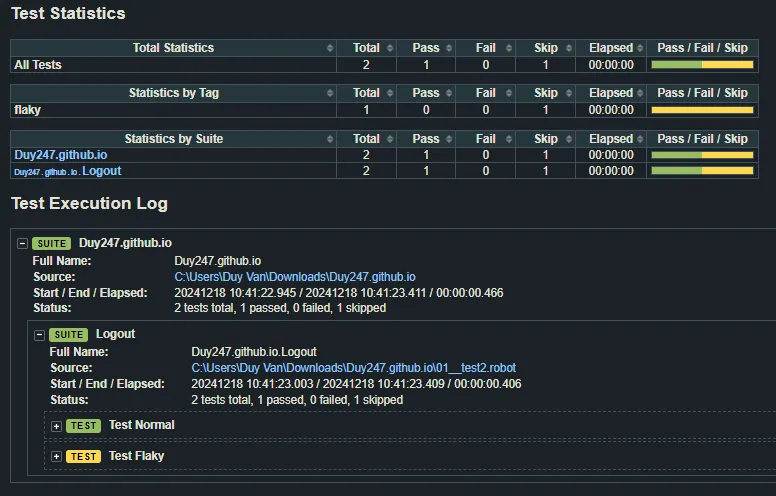
Log when a test case is skipped
robot: tags
Robot also offers special tags in the test itself:
| Tag | Effect |
|---|---|
robot:continue-on-failure, robot:recursive-continue-on-failure | Enable continue-on-failure for a case or suite. |
robot:stop-on-failure, robot:recursive-stop-on-failure | Disable continue-on-failure. |
robot:skip-on-failure | Mark a test as skippable when it fails. |
robot:skip | Skip a test unconditionally. |
robot:exclude | Exclude a test unconditionally. |
robot:no-dry-run | Run this test for real during a suite dry run. |
robot:exit | Stop and fail execution from this case or keyword onwards. |
*** Test Cases ***
Test Case 1
    [Tags]    robot:skip
    Log    Test Case 1